hosting · Migration route
How to Migrate from GoDaddy to Kinsta (Step by Step Guide 2026)
Complete guide to migrating from GoDaddy to Kinsta. Free migration service, faster speeds, and WordPress experts. Step by step walkthrough.
The ground you are leaving · GoDaddy
So I finally pulled the trigger and moved off GoDaddy.
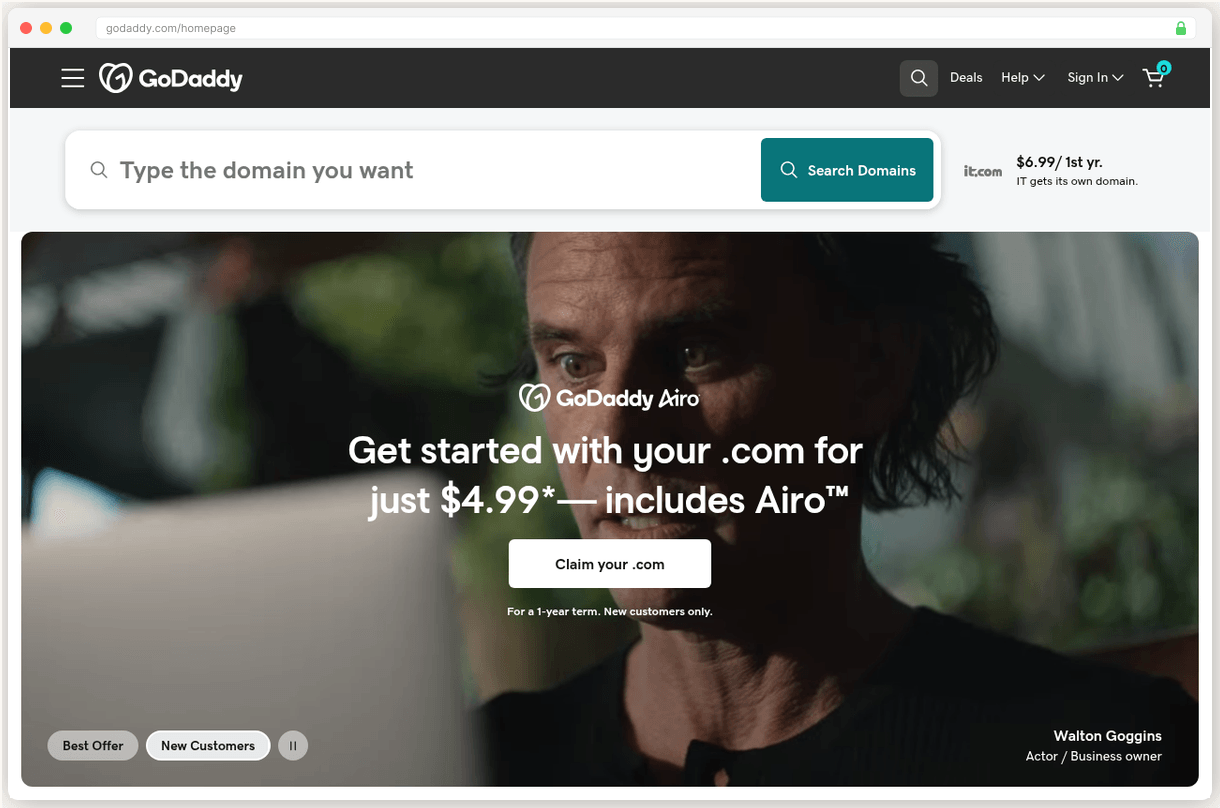
I’d been putting it off for months. You know how it is — the site works, kind of, and migration sounds like one of those things that could go horribly wrong at 2am on a Tuesday. But then I got my renewal email. $14.99/mo for what was supposed to be a $6.99 plan. Plus they wanted $120 for SSL — something every other host gives you for free. That was it for me.
I moved to Kinsta. The whole process took me maybe an hour of actual work (their team does the hard part), and honestly I’m annoyed I didn’t do it sooner. My site went from loading in ~3.5 seconds to about 1.4. The WordPress dashboard stopped feeling like it was running through mud.
Here’s exactly how I did it, step by step, so you don’t have to figure it out on your own.
Why I left GoDaddy (and why you’re probably here too)
Look, I’m not going to pretend GoDaddy is the worst thing ever. It works. Kind of. But after a while these things start to pile up:
The price bait-and-switch is real. Their managed WordPress plan says $6.99/mo. What they don’t make obvious is that it renews at $14.99 — more than double. Then SSL is $119.99/yr, their security package is $192/yr, backups are another $36/yr. I sat down and added it all up one night and realized I was paying close to $40/mo for shared hosting. For that money you can get something dramatically better.
My site was slow and I couldn’t figure out why. I spent weeks messing with caching plugins, optimizing images, trying different themes. Turns out the problem was the server — 512 MB RAM, shared with who knows how many other sites, running on old hardware. GoDaddy’s shared servers handle about 168 database queries under load. Kinsta handles 1,126. Same WordPress install, nearly 7x difference. No amount of plugin tweaking fixes bad infrastructure.
Support was… an experience. I once waited over an hour for a DNS change. An hour. For something that takes 30 seconds in a dashboard. And half the call was the rep trying to sell me a security package. There’s a woman named Nicole Mueller who wrote about her experience — she was a 25-year GoDaddy customer with 250+ accounts and eventually left because support had gotten so bad. Her WordPress backend issue took 2 hours and 32 minutes to resolve. I felt that in my soul.
Then the FTC thing happened. In January 2025, the FTC went after GoDaddy because they’d been claiming “award-winning security” while hackers literally had access to their network for three years (2019-2022). 1.2 million WordPress customer records exposed. No MFA, no monitoring, no rate limiting. That was the point where I stopped thinking about switching and started actually doing it.
Why I went with Kinsta specifically
I looked at a few options. Cloudways, SiteGround, a couple others. Kinsta is more expensive than all of them — $35/mo minimum — but a few things won me over.
They run on Google Cloud with dedicated containers. That means your site isn’t sharing resources with hundreds of other accounts. They include Cloudflare Enterprise CDN on every plan (not the free Cloudflare tier — the enterprise one with 260+ edge locations). SSL is free. Backups are free. Hack cleanup is free. Staging environments are free.
Here’s the real comparison that made the decision easy:
| Feature | GoDaddy Managed WP | Kinsta Single 35k |
|---|---|---|
| Starting price | $6.99/mo (renews at $14.99) | $35/mo (price stays the same) |
| Infrastructure | Shared server, SATA | Google Cloud C3D, isolated container |
| Free SSL | Nope ($119.99/yr) | Yes |
| Free migration | Nope | Yes, their team does it |
| CDN | Basic | Cloudflare Enterprise |
| Support wait | 45-60 min | Under 2 min live chat |
| Daily backups | Extra ($36/yr) | Included |
| Staging | No | One-click |
| Uptime SLA | None | 99.9% |
When you add up GoDaddy’s “extras” that should just be included, you’re at $30-40/mo anyway. For $35 at Kinsta you get all of it, on way better hardware.
See our Best GoDaddy Alternatives for more options if Kinsta isn’t the right fit.
Before you start — the checklist
Don’t skip this part. Seriously.
Back up everything. Your full site — files and database. Use UpdraftPlus or download a backup from GoDaddy’s dashboard. I’m paranoid, so I did both. If something goes sideways (it won’t, but still), you’ll be glad you did.
Sort out your email first. This is the one that catches people off guard. Kinsta doesn’t do email hosting. If you’re using GoDaddy email, you need to set up Google Workspace ($7/mo), Microsoft 365, or something like Zoho before you touch anything. Move your email first, verify it works, then proceed.
Screenshot your DNS records. All of them. Go to GoDaddy’s DNS management and screenshot the whole page. You’ll need your MX records (for email), any TXT records (Google Search Console, SPF, DKIM), and the A record. I know it sounds tedious. Do it anyway.
Remove GoDaddy plugins. If you have any GoDaddy-branded WordPress plugins, deactivate and delete them. They won’t work anywhere else.
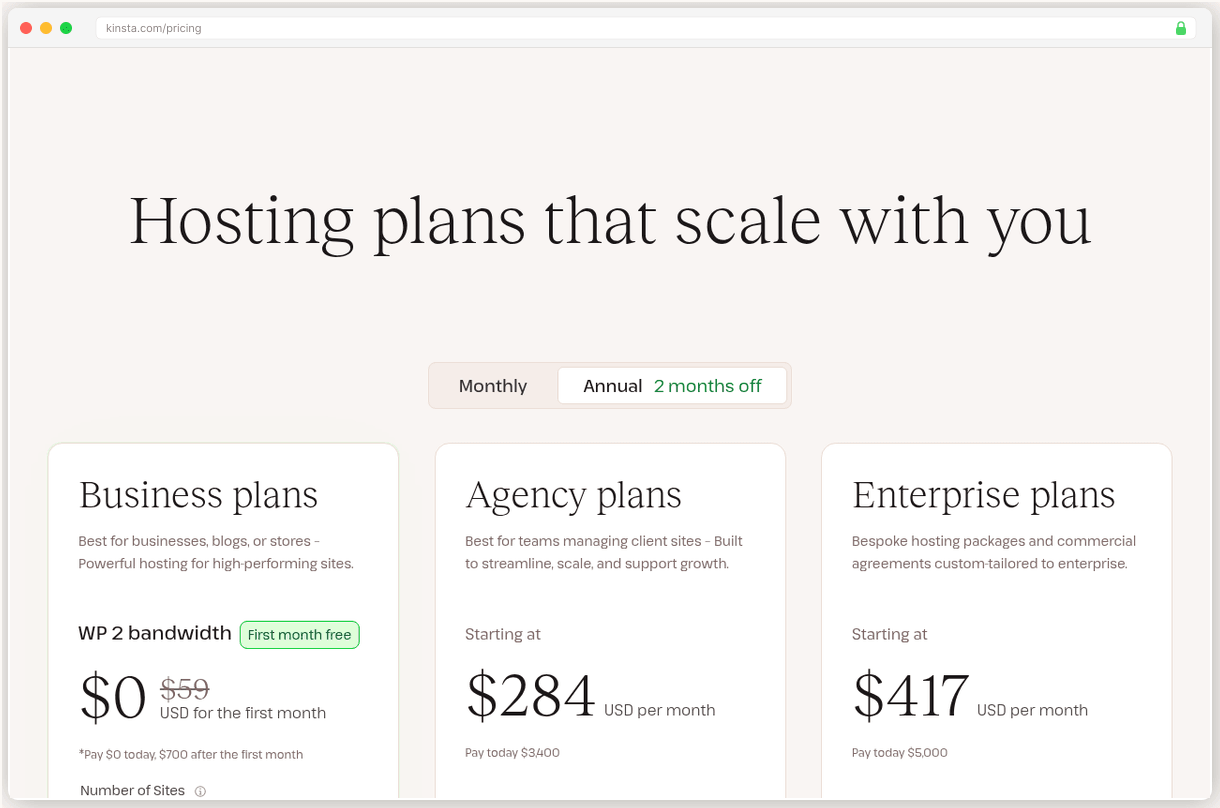
Pick your Kinsta plan. The Single 35k ($35/mo) is fine for most sites. Not sure about your traffic? They also have bandwidth-based plans where you pay for actual data transfer instead of estimated visits. That’s what I went with because I didn’t trust GoDaddy’s traffic numbers.
The actual migration (this is the easy part)
Step 1: Sign up for Kinsta
Go to Kinsta and create an account. The Single 35k plan has a first month free, so you’ve got nothing to lose. Pick a data center near your audience — they have 37+ locations. I picked the one in Iowa since most of my traffic is US-based.
Step 2: Request the migration
This is the part that surprised me. You don’t do the migration yourself. Kinsta has a team that does it for you.
In MyKinsta, go to WordPress Sites, click “Request migration,” fill in your GoDaddy credentials, and pick when you want it done. “ASAP” means within 2 business days. I picked that, and they had it done the next morning.
They handle over 1,100 migrations a month and apparently have a 96% satisfaction rate. If they find malware on your site during the move, they clean it up for free. That’s a nice touch.
If you’re in a rush, they have an expedited option (8 hours) but it costs extra.
Step 3: Check everything on the temporary URL
Before anything goes live, Kinsta gives you a temp URL — something like yoursite.kinsta.cloud. This is where you check everything.
Go through your main pages. Click around. Test your forms. If you have a shop, try a test purchase. Check the WordPress admin — make sure your plugins are still happy. Run a speed test on GTmetrix or PageSpeed Insights just to see the difference.
I spent about 20 minutes on this. Everything looked fine. The speed difference was already obvious — the admin dashboard alone was noticeably faster.
Step 4: Lower your TTL and switch DNS
This is a small thing that makes a big difference. About 12-24 hours before you plan to switch DNS, go into GoDaddy’s DNS settings and lower the TTL on your A record to 600 seconds (that’s the lowest they allow).
GoDaddy path: My Products > DNS > find the A record > edit the TTL.
Then the actual switch. Two ways to do this. I went with Option A.
Option A — Move DNS to Kinsta (what I did)
In MyKinsta, go to DNS > Add domain. They’ll give you 4 nameservers. Go to GoDaddy (or wherever your domain is registered), and replace your current nameservers with Kinsta’s.
But first — and this is important — add all your existing DNS records into Kinsta’s DNS manager before you switch nameservers. Especially your MX records for email. If you swap nameservers without adding MX records, your email stops working immediately. Don’t ask how I know this.
Option B — Just point the A record
If you don’t want to move your whole DNS, just update your A record at GoDaddy to point to Kinsta’s IP address (you’ll find it in MyKinsta under your site > Domains). Simpler, but you’ll still manage DNS in two places.
Step 5: SSL and go live
After DNS propagates (took me about 2 hours, can take up to 48), Kinsta automatically sets up your SSL certificate. Check that your site loads with https:// and the padlock shows up. Check that http:// redirects properly. Run one more speed test on your actual domain.
Done. You’re on Kinsta.
After the migration
Don’t cancel GoDaddy right away. Give it 2-3 days to make sure DNS has fully propagated everywhere. Then cancel. If you cancel too early and something’s still pointing to GoDaddy, you’ll have a bad time.
Kill your caching plugins. Kinsta handles caching at the server level. W3 Total Cache, WP Super Cache, WP Rocket’s page caching — these will actually cause problems on Kinsta. Remove them. They have a list of incompatible plugins if you’re not sure what else to look for.
Turn on the CDN. In MyKinsta, go to your site > CDN and enable it. It’s Cloudflare Enterprise and it’s included in your plan. The difference is noticeable, especially for visitors outside your data center’s region.
Watch your analytics for a week. MyKinsta has built-in stats — visits, bandwidth, PHP response times. Keep an eye on things during the first week just to make sure nothing’s off.
Your WordPress admin will feel noticeably snappier. Plugin updates that used to timeout will complete in seconds.
What about email?
This trips up everyone. Kinsta doesn’t include email hosting. If you use your domain for email (like hello@yoursite.com), you need to handle that separately.
Three options:
- Keep email at GoDaddy (around $6/mo for basic email)
- Switch to Google Workspace ($7/user/mo) — integrates cleanest with most WordPress setups
- Use Microsoft 365 ($6/user/mo)
Set up your new email before changing DNS. You don’t want to lose access to important messages during the transition.
What’s not great about Kinsta (being honest)
I said I’d be straight with you, so here it is.
WordPress only. Not WordPress-first. WordPress only. If your site runs on anything else, Kinsta won’t host it. Period.
No email. You need Google Workspace or something similar. That’s another $7/mo per user. GoDaddy at least bundles email in, even if their hosting sucks.
No domain registration. Kinsta doesn’t sell domains. You’ll register yours somewhere else — Cloudflare Registrar is solid and cheap, Namecheap is fine too. It’s one more thing to manage.
$35/mo isn’t cheap. If you’re running a personal blog that makes zero money and gets 50 visitors a week, this isn’t the right host for you. Go with Hostinger or SiteGround. Kinsta makes sense when your site actually matters — for your business, for clients, for income.
Some plugins are banned. Kinsta blocks caching plugins and most backup plugins (they handle both server-side). Makes sense when you understand why, but it’s annoying if you’ve been relying on, say, UpdraftPlus for backups. Check their banned plugins list before migrating.
Overages cost money. Go over your visit or bandwidth limit and it’s $0.50 per thousand extra visits. Bots can inflate your numbers, which is why I went with the bandwidth-based plan. Worth thinking about.
So should you actually do this?
If you’ve read this far you’re probably already convinced. Here’s what I’ll say — the migration itself was way easier than I expected. Kinsta’s team did the heavy lifting, I spent maybe an hour total on my end, and the difference was obvious from day one. Faster site, cleaner dashboard, support that actually responds in minutes instead of hours.
$35/mo is real money. I’m not going to pretend it’s nothing. But when I added up what GoDaddy was actually costing me with all the extras, the gap was way smaller than I thought. And the gap in quality isn’t even close.
If your site generates revenue or represents your business, this is a no-brainer. If it’s a hobby blog with 50 visitors a month, probably stick with shared hosting until you outgrow it.
The route card
Cut the card below, it is the whole route.
Legend · every mark on this sheet
- Benchmark triangle: surveyed score
- Go green diamond: recommended path
- Hazard red flag: renewal hazard
- Dashed brown line: route
- Waypoint dot: migration step
- Surveyor pin: current position on the route
- Dashed trail underline: link
- Sign Up for Kinsta. Create an account and pick the Single 35k plan ($35/mo). First month is free. Choose the data center closest to your audience. Pick a US data center if most of your traffic is US-based
- Request Free Migration. In MyKinsta, go to WordPress Sites > Request migration. Provide your GoDaddy credentials. Their team handles everything. Have your GoDaddy login details and FTP info ready
- Verify on Temporary URL. Kinsta gives you a temp URL to check everything before going live. Browse pages, test forms, check the admin dashboard. Don't skip this. Check every page, every form, every plugin.
- Lower TTL and Switch DNS. Lower your TTL to 600 seconds at GoDaddy 12-24 hours before. Then update nameservers to Kinsta's or point your A record. DNS propagation takes 1-4 hours usually, up to 48 in rare cases Add your MX records in Kinsta DNS BEFORE changing nameservers or your email will break
- SSL and Go Live. Kinsta auto-provisions SSL after DNS propagates. Verify https works, check redirects, run a speed test on your live domain. Wait 2-3 days before canceling GoDaddy to make sure everything is stable
Questions from the field
No. Kinsta migrates everything — files, database, the works. Your old site stays live on GoDaddy until you point DNS to Kinsta. Nothing goes dark during the switch.
Mine was done overnight. Officially they say 1-2 business days. There's an expedited option (8 hours) if you're impatient and don't mind paying extra.
Kinsta doesn't host email, so you'll need to set it up separately. Google Workspace ($7/mo), Microsoft 365, or Zoho all work. Set it up before you touch DNS.
That's why you made a backup. But honestly, Kinsta's migration team handles problems — they do 1,100+ migrations a month. In my case nothing broke.
If your site makes money or represents your business, yes. One documented case showed load times dropping from 4.2s to 1.3s with a 40% increase in orders. If it's a hobby site, get SiteGround or Hostinger instead.
Yeah, first month is free on the starter plans. Migrate your site, poke around, and cancel within 30 days if it's not for you.
Adjoining sheets
CENTER CELL IS THIS SHEET · NEIGHBORS ARE REAL SURVEYED SHEETS
Robert Allen
TECHNICAL REVIEWER · TERRITORY: HOSTING
Robert owns the performance data at SwitchCut. He maintains our benchmark tables across 10 hosting providers (from Kinsta's 120ms TTFB to HostGator's 904ms), compiled from published load and uptime testing, and he is the person on the team who actually enjoys reading server spec sheets. If a number appears in a hosting sheet, it went through him first. All sheets by Robert Allen