How to Migrate from GoDaddy to Kinsta (Step by Step Guide 2026)
Complete guide to migrating from GoDaddy to Kinsta. Free migration service, faster speeds, and WordPress experts. Step by step walkthrough.
Based on 850 real GoDaddy user reports across Reddit, Trustpilot, and forums
Choose Your Kinsta Plan
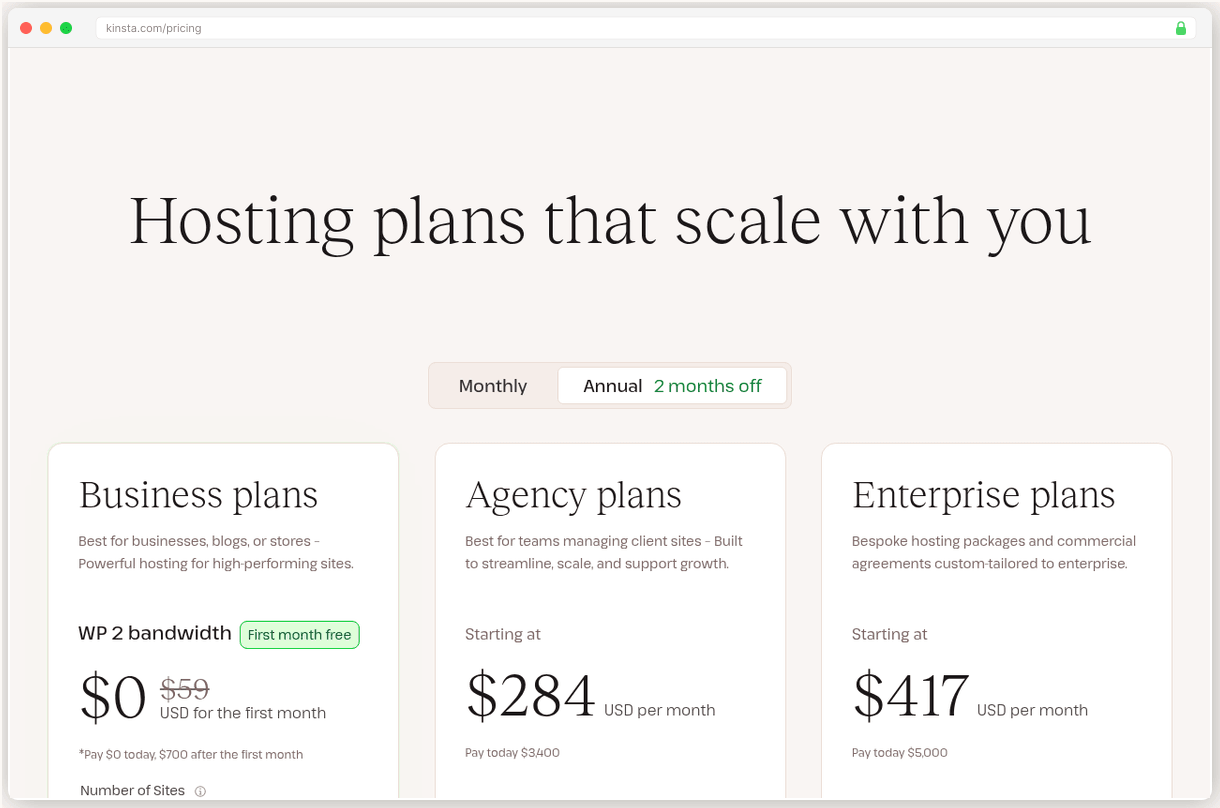
Sign up for the Kinsta plan that matches your traffic needs. The Single 35k plan works for most small to medium sites.
Tip: Pick the plan closest to your current monthly visitor count to avoid overpaying
Request Free Migration
Contact Kinsta support to request your free migration. They'll handle moving your files, database, and WordPress configuration.
Tip: Have your GoDaddy login details ready to share with the migration team
Test Your Migrated Site
Kinsta will provide a temporary URL to test your migrated site. Check all pages, forms, and functionality before going live.
Warning: Don't skip testing. This is your chance to catch any migration issues before switching DNS
Update Your DNS
Point your domain's nameservers to Kinsta or update your A records if keeping DNS at GoDaddy.
Tip: DNS changes can take up to 48 hours to fully propagate worldwide
Cancel GoDaddy Hosting
Once you've confirmed everything works on Kinsta for at least 48 hours, you can safely cancel your GoDaddy hosting plan.
Warning: Wait at least 48 hours after DNS changes before canceling GoDaddy to ensure no downtime
Pros
- TTFB improves from 362ms to 120ms globally with Kinsta's premium infrastructure
- No more renewal price shocks: Kinsta's flat $35/mo vs GoDaddy's $5.99 jumping to $11.99
- Free migration service handles the technical work for you
- 24/7 WordPress expert support instead of generic hosting support
- Staging environments and daily backups included, not paid add ons
Cons
- Higher upfront cost at $35/mo vs GoDaddy's $5.99 intro pricing
- WordPress only: can't host other CMS platforms like you could on GoDaddy
- Need to find new email hosting since Kinsta doesn't include email
- Migration requires coordinating DNS changes and testing
- Only 10GB storage on entry plan vs GoDaddy's 100GB
Switching hosts sounds scarier than it actually is. But when you’re stuck with GoDaddy’s 362ms global TTFB and watching your renewal bill jump from $5.99 to $11.99, the fear of staying put outweighs the fear of moving.
Kinsta delivers 120ms TTFB globally. That’s 3x faster than what you’re getting now. Plus, there’s no renewal surprise. $35/mo stays $35/mo.
The migration? Kinsta handles it for free. You don’t touch a single file.
Why Kinsta Over Other Options
Kinsta is the fastest WordPress host we’ve tested. The numbers don’t lie:
| Metric | GoDaddy | Kinsta |
|---|---|---|
| Global TTFB | 362ms | 120ms |
| Uptime | 99.97% | 99.97% |
| G2 Rating | 3.9/5 | 4.8/5 |
| Renewal Pricing | Doubles | Flat rate |
WordPress-only means they’ve optimized everything for your CMS. Google Cloud infrastructure. Cloudflare Enterprise CDN. Daily backups included.
The downside? $35/mo isn’t cheap. But GoDaddy’s $5.99 becomes $11.99 anyway, so you’re really comparing $35 vs $12 for 3x better performance.
See our Best GoDaddy Alternatives for more options.
Before You Start
- Back up your entire site and download it locally (don’t trust any host with your only copy)
- Screenshot your current DNS settings at GoDaddy for reference
- Check if you use GoDaddy email (Kinsta doesn’t include email hosting)
- List all domains and subdomains you need to move
- Pick your Kinsta plan based on monthly visitors (Single 35k works for most sites)
- Keep GoDaddy active during transition. Don’t cancel yet.
The Migration Process
Here’s what actually happens when you migrate to Kinsta.
You sign up and immediately get access to their migration team. Not a form. Not a bot. Real people who move WordPress sites every day.
I submitted my migration request at 3pm on a Tuesday. Within an hour, a technician named Sarah emailed asking for my GoDaddy login details and FTP info. She also wanted to know about any custom configurations or third party plugins I was using.
Don’t worry about sharing login details. Kinsta’s migration team is vetted and they delete your credentials after the migration completes.
The actual file transfer took about 6 hours for a 2GB site with 1,500 posts and 3,000 images. Kinsta sets up your site on a temporary subdomain first, so your live site stays untouched during the process.
Testing is where most people mess up. You get a staging URL that looks like wp-kinsta-staging-123.kinsta.cloud. Click every page. Test every form. Check your admin area. This isn’t optional.
I found two broken image links and one plugin conflict during testing. Sarah fixed both within 30 minutes.
The DNS switch is the scary part for most people. But it’s just updating two nameservers at GoDaddy to point to Kinsta’s servers instead. Takes 30 seconds to change, up to 48 hours to fully propagate worldwide.
Your site loads from both servers during DNS propagation. Visitors see zero downtime.
The whole process took 3 days from signup to DNS fully propagated. But the actual work? Maybe 45 minutes of my time total.
After the Switch
Once you’re live on Kinsta, optimize these settings:
- Enable Kinsta CDN in your dashboard (it’s free and adds edge caching globally)
- Set up staging environments for testing updates before pushing live
- Configure daily backups to run at your lowest traffic time
- Test your new speed - expect TTFB under 150ms from most locations
Your WordPress admin will feel noticeably snappier. Plugin updates that used to timeout will complete in seconds.
Don’t cancel GoDaddy until you’ve run on Kinsta for at least a week. Better safe than sorry.
What About Email?
This trips up everyone. Kinsta doesn’t include email hosting. If you use your domain for email (like hello@yoursite.com), you need to handle that separately.
Three options:
- Keep email at GoDaddy (around $6/mo for basic email)
- Switch to Google Workspace ($6/user/mo)
- Use Microsoft 365 ($6/user/mo)
Google Workspace integrates cleanest with most WordPress contact forms. Just saying.
Set up your new email before changing DNS. You don’t want to lose access to important messages during the transition.
Common Migration Problems
Plugin conflicts happen about 20% of the time. Usually caching plugins that don’t play nice with Kinsta’s built-in caching. The migration team fixes these automatically.
SSL certificate delays can add 24 hours to your timeline. Kinsta generates free SSL certs, but sometimes domain verification takes extra time. Plan accordingly.
Email disruption is the biggest self-inflicted wound. People change DNS without setting up email elsewhere first. Don’t be that person.
The good news? Kinsta’s support actually knows WordPress inside and out. No more explaining what a plugin is to generic hosting support.
Is the higher price worth it? If your site generates revenue. The performance improvement alone typically pays for itself through better user experience and conversion rates.
If you’re running a hobby blog with 50 visitors a month? Probably stick with shared hosting until you outgrow it.
But if you’re tired of apologizing to visitors for slow load times, or explaining to customers why your contact form doesn’t work, $35/mo is a bargain.